Thursday, April 12, 2018

 https://mirillis.com/download-action


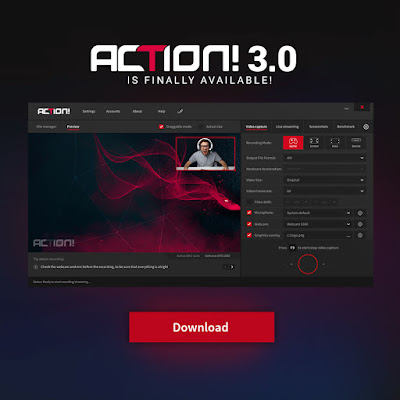
Mirillis Action! 3.0
 is all-in-one software for Windows Screen and Game Recording and Live Streaming. 

The program offers such features as Device Recording Mode, On-Screen Drawing Panel, Computer Benchmark and System Performance Monitoring.


Powerful and incredibly easy-to-use Action! 3.0, apart from capturing high-quality screenshots of a Full Screen or selected part of your desktop, offers 4 really robust recording modes:

1)     Game recording mode – dedicated for Gamers and Live Streamers

2)    Screen recording mode - E-learning, educational purposes, classroom activities, webinars, tutorial guides, Skype or Hangout calls recording, marketing video creation and more. - possibilities are countless!

3)    Active desktop region mode that enables screen recording of selected part of a desktop

4)    Device recording mode which allows you to capture video from your PS4, Xbox or other external devices like TV, mobiles, etc.

Thanks to Advanced Overlay Management System for Live Streaming you don’t need any additional display monitor to control your stream because all information you need is already in front of you on one desktop. The system allows you to:

› add up to 6 modular URL Overlays such as Twitch chat, Alertbox etc.
› easily customize your Logo, Webcam, and other Widgets
› use Green Screen Effect for webcam or 3D Intel RealSense Background  Removal
› monitor the status of your recording and game performance
› Live preview of your video composition


Mirillis Action! Features:


› 4K Ultra HD Video Capture
› Voice and Audio Recording
› USB/HDMI Capture Devices
› On-Screen Drawing Panel
› Benchmarking
› CHROMA KEY and ALPHA MASK
› Webcam and logo overlays
› Screenshot Capture Tool
› Fast export and upload to YouTube and Facebook


What's new in Action! 3.0?

NEW FEATURE: Live preview of video composition
NEW FEATURE: Accounts manager (YouTube, Facebook etc.)
NEW FEATURE: Drawing Panel (draw shapes and texts over any borderless windowed games in real time!)
NEW FEATURE: Performance improvement
NEW FEATURE: Support for web browser overlays
NEW FEATURE: New advanced multi-layer HUD (view chat overlay over any streamed game on one monitor!)

NEW FEATURE: Support for 4K webcams
and more!

Action! 3.0 is an excellent Game Recording Software that captures Smooth Gameplay in Ultra HD quality, low CPU use, and no FPS loss. Program records games in outstanding 4K Ultra HD up to 3840x2160 resolution with no time limitation.
Device recording mode allows capturing video from gaming consoles such as Xbox or Play Station. The program supports Elgato, Avermedia and Hauppauge capture cards.
Action! HUD displays free disk space, viewer counter statistics, FPS (Frames Per Second), mic volume level, duration of your recordings and webcam preview if enabled.
With Action! 3.0 New Account Manager you stay logged-in to all popular live-streaming services and quickly switch between sessions. This makes Action! one of the most convenient PC Screen Recorder software on the market.

If you are a Steam user and would like to record your Steam games with Action! 3.0 you can get a full version of the software on Steam and enjoy high-quality video recordings of your gameplays with Action! 3.0 Steam Edition.

Thursday, September 21, 2017

New Mirillis Blog

Hello!

We would like to invite you to our new blog. From now, all new articles you will be able to read here:

Monday, April 24, 2017

Adding custom frames and shadows to webcam videos

With Mirillis Action! Screen Recorder overlay graphics option you are able to make your videos even more entertaining! Add logo or use overlay graphic option to make your webcam video more outstanding.


First, before we start to create overlay graphics with custom frames or shadows, we need to setup webcam size and position. To setup webcam recording settings please open Action! Webcam Settings.


1. Select Webcam device in main Video recording tab. Then open Webcam settings again and use Position and Video size options to adjust webcam video size and position. Use webcam preview to see how webcam video will be placed in your final desktop or gameplay recordings. 


Make a test desktop or gameplay recording to check if you like current webcams settings. 


2. Use your favorite graphics editor and create a PNG file with frame, shadow or any other graphics you would like to add around your webcam picture. Please note that webcam picture will be added over overlay graphics.


3. Go to Action! settings and click on Overlay graphics settings. Make sure to enable Use overlay graphics option, select your PNG file as Input file and set correct overlay graphics Position.

4. Make a test desktop or gameplay recording to check if your overlay graphic is placed correctly.


TIP: Use your webcam recording test video to make sure that overlay graphics will perfectly match webcam picture. Play test video with 100% video size (press "1" in Action! Screen Recorder's player), make a screenshot and use it as a reference to create your PNG graphics.

Tuesday, January 17, 2017

Action! 2.1.0 is now available - check what the new version offers!

Action! 2.1.0 is now available.


What's new in Action! 2.1.0?

  • NEW FEATURE: Full live streaming/login API integration with Facebook, YouTube, Twitch and Hitbox
  • NEW FEATURE: Real-time live streaming viewers counter statistics displayed on HUD
  • Live streaming start button added
  • Live streaming privacy selection for Facebook and YouTube
  • Recording performance fixed on specific Win10 systems
  • Fixed Facebook video uploading
  • Fixed Action! startup with Elgato device installed
  • Fixed Action! AVI recording when very large cursors are visible (ex. Photoshop)
  • Fixed OpenGL recording (Intel GPU ex. Minecraft)
  • Fixed OpenGL recording (Exanima game)
  • Stability fixes
  • GUI improvements

Active desktop region recording mode [Screen Recording 101 by Mirillis]

Active desktop region recording mode is dedicated for recording only selected screen area of Windows Vista, Windows 7, Windows 8 & 8.1 and Windows 10 desktop. The ultimate performance of Action! Screen Recorder makes it a perfect tool for recording videos, web videos, games, and any other screen activity.


Examples of what you can use Action! desktop region recording for:

  • recording selected desktop area of Windows Vista, Windows 7, Windows 8 & 8.1 and Windows 10
  • recording selected area of Windows 8 and 8.1 Modern UI applications and games
  • recording online games in a web browser or windowed mode
  • capturing all web videos
  • creating video tutorials
  • recording videos played in media players in windowed mode
  • recording all applications, games, and websites
  • capture screenshots of selected desktop area


1. Select "Active desktop region" recording mode.


The main window of Action! will hide and Action! will switch to the desktop region recording mode. Use mouse to select your region size and position. You can precisely control region size and position with the keyboard: use arrows to move a region, use SHIFT + arrows to resize a region.

The green frame indicates that region is accepted and Action! is ready to start recording. Gray frame indicates that current region cannot be recorded. 

The region cannot be recorded when it includes the area of 2 different desktops.


The Action! HUD should be visible in the top right (the default position) corner of your screen showing that Action! is connected to your Windows desktop and ready to start recording the region of desktop you have previously selected.


2. Active desktop region recording

Press "Start/stop recording" button or F9 hotkey to start Windows desktop recording.


When you start recording the frame turns red showing that the recording of your selected region is in progress.


HUD status also changes showing that Windows desktop region recording is in progress.


Press "Start/stop recording" button or F9 hotkey to stop recording. The region frame color and HUD status will change showing that Windows desktop region recording has finished.

3. Desktop region recordings playback

Open main window of Action! Screen Recorder and check the list video recordings. The video recordings list shows all your desktop recordings, gameplay recordings and any other screen recordings available in selected output folder.


Action! features internal fast player dedicated for the playback video recordings. Select your new desktop recording and use mouse double click on a thumbnail to start video recording playback.


To play Action! video recordings you can use Splash 2.0 media player.

Splash 2.0 provide you with additional features like SmartSeek, Audio boost, Screen capture and more. All Splash products are available for download at Mirillis website:

Friday, January 13, 2017

Monflo – new remote gaming and access software by Mirillis

Monflo – new remote gaming and access software by Mirillis

As some of you may already be aware of, Remote Action! is gone. The project of Remote Action! has been expanded and we have created Monflo – a universal remote access software for gaming and personal and business use.


With Monflo Remote PC Access Software you can gain control over any server computer that have added your client device to their trusted list or connect to them using Connect ID feature.

Our brand new remote access software will let you use any application from your server Windows computer on your Android mobile device or another Windows computer, as well as access any files that you need and play all the games installed on your PC!

When developing Monflo we have taken into account any features and functionalities that can, and will, make your life easier. Access to some of them is different, according to the subscription plan you have chosen. But, let’s make it clear – Monflo in its basic version is FREE, what is enough to remotely play your favourite games on your mobile devices.

If you need Ultra HD quality of streaming or HEVC video streaming, possibility to record your sessions, file transfer, benefit from Connect Anywhere feature, or use it commercially, then you have to choose one of the paid subscription plans.

Interface – the beginning of journey

Monflo’s interface is clean and intuitive – it can be seen from the very beginning.


You can log into Monflo either through your login and password (account is required) or Connection ID (for more details on what Connection ID is check https://monflo.mirillis.com/remote-pc-access/tutorials/connection-id-tutorial#tutorial).

The best features

Favourite applications and games lists

With Monflo you can create and manage your own personalized favourite applications and games list on your PC to access all the apps and games later with your Android mobile device. This allows you to run your Windows applications on Android easily just with a single tap.

The applications list and the games list are separate.


Connect Anywhere

Connect Anywhere is a feature that lets you to connect your Client device to your server wherever you are.
There is no restriction in using Monflo to get remote access over your Server computer from your Android device or another PC computer.
Connect Anywhere is only available in Premium Plus, Corporate and Enterprise subscription plans. In Free and Premium subscription plans the access to the service may be restricted or unavailable.
For more see https://monflo.mirillis.com/remote-pc-access/tutorials/connect-anywhere.


There is really many of Monflo features to discover.

If this have made you curious you should definitely download Monflo Remote PC Access Software and see by yourself for what it can useful and how much fun it can give you!

Visit Monflo website


Wednesday, January 11, 2017

Time-Shift Feature [Screen Recording 101 by Mirillis]


Time-Shift - the life-saving feature of Action! Screen Recorder


Have you ever lost a chance to record a perfect in-game action because you forgot to turn on the recording? 


Well, you can say “goodbye” to all the lost opportunities – Time-Shift feature is here for you.Save your last gameplay actions by pushing just a single hotkey, which you define by yourself. Time-Shift option keeps recording all your current gameplay action in a short loop buffer.


How to enable Time-Shift function?
Time-Shift feature is available only for Games and applications recording mode. Run Action! Screen Recorder and make sure that Games and applications recording mode is selected. 
Find Time-Shift option and make sure it is enabled.


Adjust your Time-Shift duration, video recording settings (video size, framerate etc.) and run a game. Working Time-Shift option is indicated on Action! HUD:

To save your Time-Shift recording to a file just press a hotkey. Default hotkey to save Time-Shift to a file is: Left Alt + F9

How to save Time-Shift to a file?
To save Action! Time-Shift to a file you have to use a hotkey. Default hotkey is: Left ALT + F9 

What are Time-Shift requirements? All you need is an active "Games and applications" recording mode and a free disk space! It's really easy. Hardware acceleration for video encoding is also recommended, but not necessary.


Time-Shift feature has only a few limitations:
  • The feature is available in "Games and applications" recording mode only 
  • Minimum Time-Shift buffer duration is 10s.
  • Maximum Time-Shift buffer duration is 10 minutes.
  • Time-Shift recordings are available in MP4 file format only 
  • Maximum recording resolution is 1920x1080


Monday, November 7, 2016

Blizzard announces the remake of the first Diablo


Remake will be somehow "inside" Diablo 3 as a set of levels. Graphics will be based on the engine of Diablo III, however, the manufacturer has announced that they will apply special graphics filter to render the archaic atmosphere of the game.
The player will be able to move only in eight directions, though the exact nuances of the game are not yet known. In the game will appear soundtrack from Diablo 1, as well as the opponents.

And as Frank Pearce, co-founder of Blizzard, said at this year's event for the fans – BlizzCon - there will also be a lot of secrets to discover.


The expansion called "The Darkening of Tristam" will be available for free for those who bought "Reapers of Souls", the first expansion for Diablo III, both on PC and consoles. I think that most of the players already have bought this expansion, so it should not be a problem.

Be sure to record or stream your gameplay when it comes out. With new Action! 2.0 of course :)

Tuesday, September 13, 2016

Solution for "Illegal copy of Action!" problem


This problem occurs in the following situations:
  • You have copied some 3rd party files into Action! Screen Recorder installation directory
  • You have installed older Action! Screen Recorder version without uninstalling newer version first
  • Something went wrong during installation and some file were not copied correctly

To fix the problem please follow the steps below:

  • Go to Action! Screen Recorder installation directory (default location: C:\Program Files (x86)\Mirillis\Action!) and click Uninstall.exe
  • Follow instructions and uninstall Action! Screen Recorder
  • Make sure that all files from Action! Screen Recorder installation directory has been deleted. If you experience any problems during uninstall, in example with some files access, please restart your PC and try again.
  • Download the latest Action! version
  • Install Action! Screen Recorder on your PC
If you still experience a problem, please contact us via:
support@mirillis.com 
Our support team will do the best to help you solving the problem.

Wednesday, September 7, 2016

Razer Stargazer with RealSense technology – and the greenscreen is not needed


The new Razer’s camera – Stargazer – is now available for the price of $149.99. It was created as an advanced web camera with a range of dedicated solutions for video production and transmission. Among the distinctive qualities you can find high-speed of frames capture, dynamic system of cutting out the background for professional-looking transmission (even without a green screen grab), the function of 3D scan, so you can dive deeper in the game world and advanced face and gestures detection algorithms to support daily operations.
The camera can record in 720p @ 60fps and 1080p @ 30fps and is equipped with an automatic noise reduction sound. What the YouTubers and Twitch users will love is green-screen-without green-screenshot function possible by using RealSense technology. In other words, we can cut out the whole background using just a few mouse clicks during the live broadcast or game recording, leaving only the author.


Source: The Verge’s YouTube channel


The camera, of course, is not the cheapest one. However, if we take into account the cost of a green screen, frameworks needed for its installation (and place that it must occupy) it may be that the Stargazer will be our salvation and cost less than the other option.


When pairing it with Mirillis Action! Screen Recorder, which is supporting Intel’s RealSense technology, you will get the perfect combo of software and hardware for professional game recording, streaming, and even creating webinars.

Tuesday, August 16, 2016

Gears of War 4: multiplayer mode - the latest gameplay


In the latest trailer you can see the classic deathmatch. The eye-catcher is primarily a multitude of movements and all kinds of stunts that we can do. Additionally, hiding behind obstacles functions without charges.


Take a look at the latest clip and judge it yourself, what do you think about this.
Is, in your opinion, the multiplayer mode worth streaming or recording?

Thursday, August 11, 2016

Overwatch: the top player was cheating during streaming.


The case concerns a Korean player who was among the top 200 players in the rankings. He was because he earned himself a lifetime ban on his account.

What has he done? Well, he was the owner of the popular in his region channel  on Twitch. During his stream he gathered a group of fans to admire his skill. Streamer decided to impress them even more, so he slightly tweaked his skills with Aimbot.


Sometimes it happens that cheats allows only a slight correction and is not so treacherous. Thanks to this setting scammer can no longer evade justice because the offense is not conspicuous. Here, being a suspect is not a subject to discussion. In the gameplay you do not even see the exact movements of the mouse. He just automatically jumps from opponent to opponent.


He provided evidence of his guilt, for which he was immediately punished.

Tuesday, August 9, 2016

Will we get Tekken 7 on PC computers?


Producer of Tekken, when asked about cross-platform gameplay in the latest part of the game, said that everything depends on the decision of Sony. Let us hope that the Japanese company will not reject this idea. The combination of the three major platforms would mean much greater interest in the game and very high traffic on the servers.


Would you like to play and record gameplays of the newest Tekken 7 on your PC?

Monday, August 8, 2016

End of 1st Season in Overwatch


Ranking Mode - or how Blizzard calls it: Competitive Play - was not available in Overwatch from the beginning. To fine-tune this rivalry within the rankings Blizzard has removed this option just before the release of its best-selling product. Competitive Play debut at the end of June (nearly a month after the appearance of Overwatch on store shelves). Despite the extra time to fix it, not all played as it should.

Now, however, with the scheduled for August 18 (to be more precise at 2 am) end of the first season, Blizzard will have another chance to make major changes. To start the second season - initially scheduled for September 6 - Competitive Play will be locked.


Some extra information: 
Each player who played the first ten meetings and was assigned to the appropriate rank, will receive a special icon. However, if any of you have succeeded for a moment to catch the Top 500 best players, then you can count on additional animated graffiti and another icon.

Friday, August 5, 2016

Battlefield 1: check out the upcoming arsenal!

Well, we have to admit that it is not quite how we imagined the reality of the First World War. But, ask yourself a question - does the games faithfully imitating the reality of the conflicts have any chances of commercial success? In this case, the subject is so innovative that the enormity of special effects will not even bother you.


Today released trailer is showing the weapons that will appear in BF1.  You can see rifles, shotguns, sniper rifles, pistols,  anti-tank rifles, grenades, machine guns. We will definitely !not get bored Meanwhile, waiting for the presentation of available vehicles.

Thursday, August 4, 2016

Is the Dice a hint on Diablo 4?

Is it possible that Blizzard hid a hint on Diablo 4 in a box with a gifts on BlizzCon 2016? It is very likely. Meanwhile, one of the known YouTuber and streamers Kripparian, released the video online in which we can see these gifts:


As you probably know, buying such a box is possible, after purchasing a virtual ticket to BlizzCon, or participation in the event - which involves undoubtedly huge costs.


Therefore we explain what's going on in the plot of Diablo 4. Now, in a box with gifts is a bag of dices, like in D&D - D20, D8, D6, D4. Does D4 not associate with Diablo 4? Yes, of course it does! 

Wednesday, August 3, 2016

New Overwatch hero - Ana Amari

Representatives of Blizzard presented a new character, which is already available in the MMO shooter Overwatch - Ana Amari..

The woman is a sniper support, able not only to hurt her enemies, but also to heal comrades.
Additionally, it can lull opponents (interrupting ultimate attacks at the same time) and temporarily block the possibility for victims to be healed.
Hers ultimate ability is a significant short-term bonus to speed and damage dealt for an ally team member.
Blizzard also took care of the background of a new character. Ana is the mother of Pharah - one of the heroines of the original game. Furthermore, it is also one of the founders of the Overwatch. Shot by Reaper, she was considered dead.
Her full profile and her story you can find on official Overwatch page below:

https://playoverwatch.com/en-us/heroes/ana/

Also check out the introduction video of Ana Amari, you will not be disappointed.


Do not forget to record your gameplays of Ana from Overwatch - with Mirillis Action! of course :) 

Pokemon GOt sued!


Jeffrey Marder have had quite enough of trainers who were breaking on his premises to hunt rare Pokemon. American is entering the judicial path with Niantic, Nintendo, and the Pokemon Company.

Prosecutor states that the authors of the game put PokeStops and gyms in the area of private property or in public places. Let's agree that in churches or museums it is simply not proper to hunt Charizard. Of course, it is not difficult to guess that the authors have not received consent from any of the owners of such places.


The author of lawsuit complained also for Pokemon trainers who come to his house and ask if they could catch a pokemon in his yard. Some are not so cultured and do it without permission. Jefrey Marder is fed up with the situation, and the lawsuit seems to be the ultimate, but also the only possible solution to this problem. Below you can read the contents of the document:

Wednesday, April 20, 2016

GameSnap – never miss a gaming moment!

Have you ever had a really interesting moment in a game that you wanted quickly share with your friends? Creators of the Action! screen and game recording software  - Mirillis is now working on a new application for instant screenshots and short gameplay videos sharing. With GameSnap app taking instant snapshots and recording snaps will be easier than you think.

Saturday, October 6, 2012

The world's first!

Hello!

We've been very busy since we wrote something here, but I think it was worth waiting for new blog entry. We are proud to say that we are the world's first screen recording software that allow it users to record their Full HD 60p videos directly into mp4 format in real-time. This is a huge thing for us. Read below to find out more about this totally new feature and other stuff that happened last month.

The world’s first HD video recording into .mp4 format in real time.

As we mentioned. Action! Screen Recorder is the world's first screen recording software that allow it users to record their videos directly to .mp4 format (even Full HD 60p with Intel® Quick Sync technology) in real time. What does that mean in practice? First of all you get from 10 to 20 smaller recording file size. Lowest CPU usage while recording, that means more free computer resources for other applications. See the image below for more details. Ignore the "Coming soon". This is already happening! You can download Action! Screen Recorder 1.11.0 now and try it for 30 days free with full functionality.

Will it run on my computer?

Some of you asked us this question on our facebook page. As you can see on the image above. This feature has been designed for Inte®l Quick Sync Video, because no one else provide similar technology that would allow us to support another producers such as AMD® or NVIDIA®, but that doesn't mean it won't happen someday. Most of 2nd and 3rd generation of Intel® Core™ processor family support Intel® Quick Sync Video technology. But "Will it run?"
To check that you have to do two step check.
  • Step First. Go to Intel® Desktop Processors and choose your current processor. Then go to Graphic Specifications and see if there is a "Yes" near Inte®l Quick Sync Video.
  • Step Two. Go to Intel® Desktop Chipsets and choose your current chipset. Go to Graphic Specifications and see if there is a "Yes" near Integrated Graphics.
If you received two "Yeses" then the MP4 (Inte®l Quick Sync Video) function should be available for you. If somehow it still is not available. Check out these two tutorials:
We released 4 Action! Screen Recorder versions since last entry. Two minor and two major ones. 1.9.1, 1.9.2, 1.10.0 and 1.11.0. 

Action! 1.9.1

With 1.9.1 there's not much to talk about. After we released 1.9.0 we found out that we made a small mistake cancel export pop-up window. Luckily for us we noticed this bug very quickly and fixed it afterwards. Here's the full update list:
  • Improved performance of Windows 8 desktop and Windows 8 Modern UI Style applications recording
  • Important GUI improvements (fixed problem with cancel export popup window buttons)
  • Translations improvements

Action! 1.9.2

1.9.2 was a minor update but included few fixes that were bothering us for a long time. Finally we added support for graphics mod such as FXAA or TES. You were asking for this many times, now it's on. We also fixed a bug with Flash Player and Firefox browser that were causing Action! to crash. And we changed our installer to multi-language one. Full list of 1.9.2 updates below:
  • Fixed recording of games with FXAA mode installed. In example: Alan Wake, Battlefield 3, Skyrim
  • Fixed desktop region recording with region width set to 1280 and with video size set 720p (shifted video problem)
  • Fixed Flash player stability problem (Firefox browser) with Action! Screen Recorder running
  • Fixed problem with Skype stability with Action! Screen Recorder running
  • User Manuals updated
  • Small GUI improvements
  • Multi-language installer added

Action! 1.10.0

1.10.0 was all about the audio. We added few things that professionals and amateurs too should appreciate. First of all we added an option to record microphone to separate audio track. From version 1.10.0 if you tick "Record microphone to separate audio track" box you will have an .avi file with video path, system sounds audio path and microphone path. We also added settings that allow you to select microphone input audio device and system sound input audio device. Full change-log here:
  • Important fix for recording Windows 8 Modern UI Style applications
  • Added option to record microphone into separate audio track (for video recordings)
  • Added settings to select microphone input audio device
  • Added settings to select system sound input audio device
  • Fixed audio recording at 192kHz sampling frequency
  • Small GUI improvements
  • Stability improvements

Few more things about second audio path.
  1. Sony Vegas users.
    If cannot import your .avi file into Sony Vegas check if your video audio is not 5.1. SV does not accept this type of audio path. To avoid this situation untick "Allow multi-channel audio recording" for games/videos that you think they may be 5.1.
  2. Adobe Premiere users
    Somehow AP does not see our second audio path with microphone. Well a quick workaround for this is to export your second audio path from the original file. To do that you can use a free software such as Virtual Dub.

Action! 1.11.0

At this point of this entry you are probably know that 1.11.0 is a revolutionary version for us. Besides .mp4 recording we added few more options. One from the list is possibility to block Action! from monitoring selected applications. How to do that? Read the tutorial that we prepared for excluding applications. Second thing that is worth mentioning is YouTube file splitting. Many of you are verified YouTube users and were disappointed when Action! splitted your videos into parts. Now you can either decide how many parts do you want or if you don't want parts at all. Here's full change list:
  • NEW FEATURE: Direct video recording to MP4 (H.264/AVC) format using Intel® Quick Sync Video hardware acceleration technology (max FullHD 60p!)
  • NEW FEATURE: Direct video recording to MP4 (H.264/AVC) format using software encoding (max 480p)
  • Improved MP4 muxing performance
  • Maximum YouTube HD profile bitrate increased to 14Mbps
  • Added option to enable/disable file splitting when exporting to YouTube (with parts duration settings)
  • Added exclude list (possibility to block Action! Screen Recorder from monitoring selected applications) 
  • Read tutorial.
  • "Hide HUD on Action! Screen Recorder startup" option added
  • Stability improvements

Dedicated tutorial and FAQ tabs.

Currently they are only available for Action! but we are going to expand them for our other products. You can find our tutorials for Action! here and the new redefined FAQ here.

We reached 3000 fans on our Facebook page.

From here we would like to thank you for being with us.We are really grateful for having such a dedicated fans. Our community is rising and that is mostly your work. THANK YOU!

If you want to be the first one to know about Mirillis latest information, updates and many more visit and like our official facebook page where we post everything earlier than elsewhere. We also tweet newest information on our twitter so be sure you are following us @MirillisTeam. If you would like to see some video footage visit our YouTube channel - MirillisTeam.